
How to Track User Activity via Iframe-based Forms
Iframe-based forms are commonly used by third-party platforms (such as CRM and marketing tools) to improve security and isolation. However, this setup affects how tracking scripts, such as the iClaim Tracking Code, can detect form activity.
When a form is loaded inside an iframe, it runs in a separate browser context from the parent page. For security reasons (Same-Origin Policy), modern browsers prevent the parent page from accessing the iframe DOM, including listening to form events (such as submit) or reading and modifying form fields from another origin. In simple terms, this is a built-in browser security rule that keeps embedded forms isolated, so the main page cannot see or track what happens inside the form unless tracking is added directly to the iframe.
As a result, the iClaim Tracking Code installed on the parent page cannot detect the form, no form interaction or submission events are recorded, and the form submission cannot be linked to an iClaim record. This behavior is enforced by all modern browsers and cannot be overridden.
To track iframe-based forms correctly, the iClaim Tracking Code must be installed inside the iframe, on the page where the form is rendered. Installing the tracking code only on the parent page is not sufficient.
How to install the iClaim Tracking Code inside an iframe
Confirm whether the form is iframe-based
- Inspect the page where the form appears.
- If the form is wrapped inside an <iframe> element, it is iframe-based.
- If the form elements appear directly in the page DOM, it is an inline form (not iframe-based).
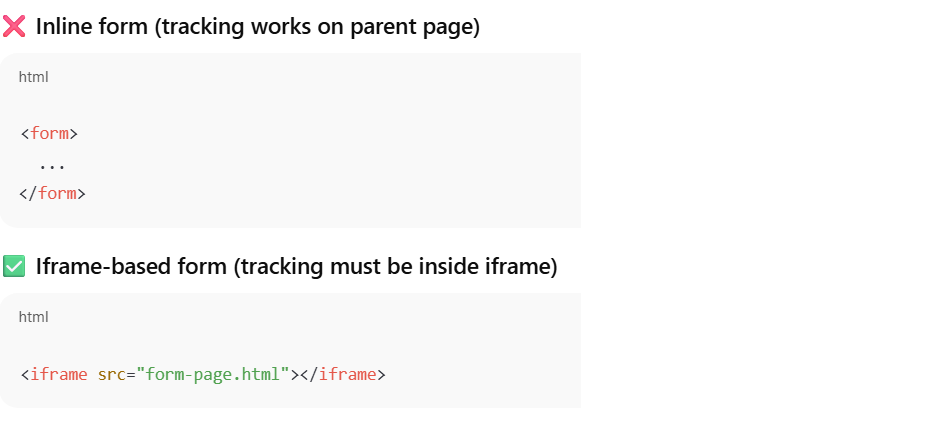
Ensure the iframe page supports script injection
To install tracking inside the iframe, one of the following is required:
- Access to the actual page loaded inside the iframe (for example, it is hosted on your own domain), or
- The form provider allows injecting custom JavaScript into the iframe context, such as:
- Custom HTML or custom code sections
- Tracking code fields
- Header/footer script injection
- onReady / onFormReady / afterRender callbacks
- A tag manager running inside the iframe
If you cannot inject code into the iframe page, true iframe-based tracking is not possible. Refer to the Troubleshooting section for alternatives.
Place the iClaim Tracking Code inside the callback
1 – Place the iClaim Tracking Code as provided via the iClaim > API Documentation > Tracking Code section inside the form provider’s callback that fires after the form has fully rendered. Common callback names include:
- onFormReady
- onReady
- afterRender
Generic pattern: Wait until the form DOM exists and insert the iClaim Tracking Code
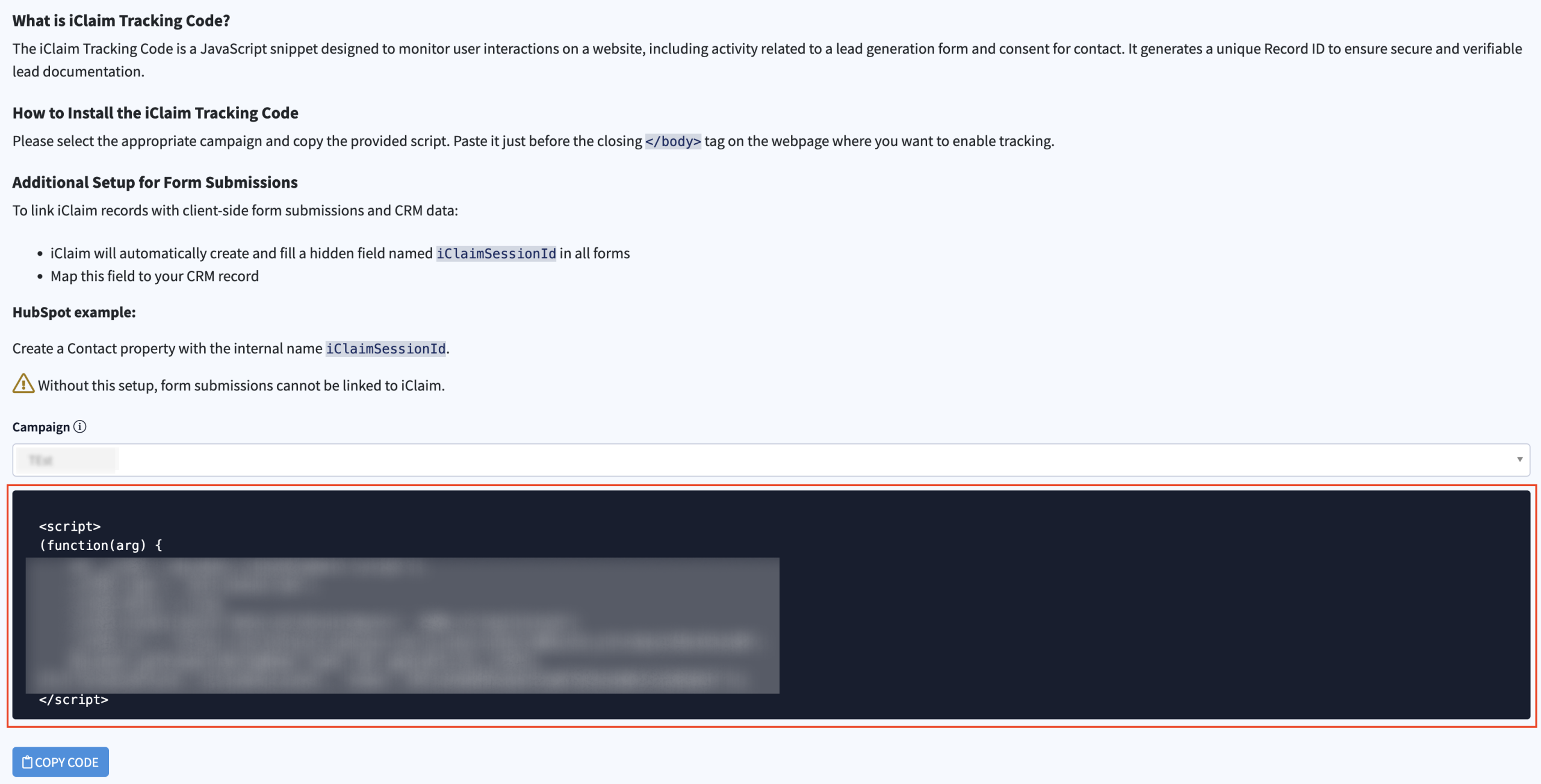
Example placement:
onFormReady: function (formElement) {
// Insert the iClaim Tracking Code here
}
2 – Once installed, iClaim automatically creates and fills a hidden iClaimSessionId field in all forms.
3 – Map this field to your CRM record.
4 – The value is submitted together with the form, and the submission can be verified using the generated Record ID.
How to check and validate the installation
1 – Verify the hidden field is populated inside the iframe (not the parent page):
- Open the iframe directly in a new browser tab, or
- Open DevTools for the iframe document
- Inspect the form and confirm:
- The hidden input exists
- The iClaimSessionId field has a value before submission
2 – Submit a test and validate end-to-end
- Submit the form.
- Confirm the submission payload includes iClaimSessionId.
- Verify that iClaim created a record.
- Validate the submission using the generated Record ID.
Best Practices
- Installing the tracking code on the parent page alone is not sufficient.
- Always install the iClaim Tracking Code inside the iframe, in the same document as the form.
- Use only the form provider’s documented script injection points.
- Always verify both field population and successful record creation.
- Ensure the hidden field name matches iClaimSessionId (or your configured alternative).
- Verify submissions by opening the record using the Record ID.
Following this approach ensures accurate, verifiable tracking of user activity and form submissions for iframe-based forms.
How to link the iClaimSessionId field to a CRM
Linking the iClaimSessionId to your CRM allows you to connect form submissions and downstream CRM activity (contacts, deals, conversions) back to the original iClaim tracking session.
When this field is stored on the CRM object, you can:
- Associate CRM records with iClaim activity
- Analyze lead quality and conversions using iClaim data
- ensure accurate attribution between marketing forms and iClaim records
Linking iClaimSessionId to your CRM (HubSpot example)
When a user submits a form:
- The iClaimSessionId value should be captured at submission time
- The value should be stored in HubSpot on the Contact record (or an associated object)
- This allows CRM activity to be tied back to the correct iClaim session
- The form submission is processed by HubSpot Forms.
- Create a Contact property in HubSpot: In HubSpot, create a Contact property with the internal name iClaimSessionID. This property will store the session ID passed from the form submission.
- Populate the field on submission: When the iClaim Tracking Code is installed on the page, it detects the HubSpot form, adds the hidden iClaimSessionID field with RecordID, and HubSpot saves the value on the Contact record automatically.
- Result: After submission, the Contact record in HubSpot contains the iClaimSessionID, the form submission can be linked back to the correct iClaim session, and CRM data and iClaim tracking data can be analyzed together.
Troubleshooting (common issues and fixes)
No form events are tracked
Possible causes:
- iClaim tracking code is only on the parent page, but the form is inside a cross-origin iframe.
Fixes:
- Install the iClaim tracking code inside the iframe page using the provider’s render-ready callback.
A hidden field exists, but it’s empty
Possible causes:
- iClaim tracking code runs before the form finishes rendering
- The callback used is not the true “form ready” event
- CSP (Content Security Policy) blocks the iClaim tracking code
- The field name doesn’t match what iClaim fills
Fixes:
- Move the iClaim tracking code into onFormReady / “after render” callback
- Confirm the hidden input name exactly matches: iClaimSessionId
- Open DevTools console inside the iframe and check for blocked script/CSP errors
- Confirm the iClaim tracking code loads successfully (no network errors)
The value submits, but iClaim can’t verify / no record is created
Possible causes:
- Field name mismatch (submitted name differs from what iClaim expects)
- The form platform strips unknown hidden fields
- Multiple forms/iframes, and the iClaim tracking code is injected into the wrong one
Fixes:
- Confirm the request payload includes the hidden field and the correct name
- Ensure the form platform allows custom hidden fields
- Confirm the code is injected into the exact iframe page that renders the form
The HubSpot contact property is not populated
Possible causes:
- The field isn’t mapped to a HubSpot property
- The submission isn’t actually going to HubSpot
- HubSpot can’t identify the contact (missing email)
- Field naming mismatch: HubSpot expects iclaim_session_id, but you submit iClaimSessionId
Fixes:
- Create the HubSpot property and ensure the form field maps to it
- Confirm the submission shows up in HubSpot form submissions
- Ensure email is present in the submission
- Add a mapping step (configure iClaim to write the HubSpot field name, or copy the value pre-submit)
We can’t inject any code into the iframe
Possible causes:
- If you cannot run scripts inside the iframe, you cannot do true DOM-level tracking inside it.
Fixes:
- Switch to an inline embed (no iframe) where possible
- Host the form on a page you control (same origin) and embed it without a cross-origin iframe
- Use a server-side integration: have the form submission go to your backend, attach the iClaim session server-side (where feasible), then forward to CRM