iClear Manual Checks
The Manual Checks section allows paid clients to send a manual request directly to the iClear API. This can be for a single iClear service or for a pre-selected combination of services (bundle). This feature provides a form to input required data and receive a complete response.
Please note that this option is available only for ValidRecord paid clients, and the service usage requires an additional fee payment.
The section provides the following benefits for clients:
- Immediate Validation
- Targeted Risk Investigation
- Detailed Data Inspection
- Bundle Configuration
- Cost Transparency
To view the information about available services and perform the request, go to the iClear > Manual Checks section.
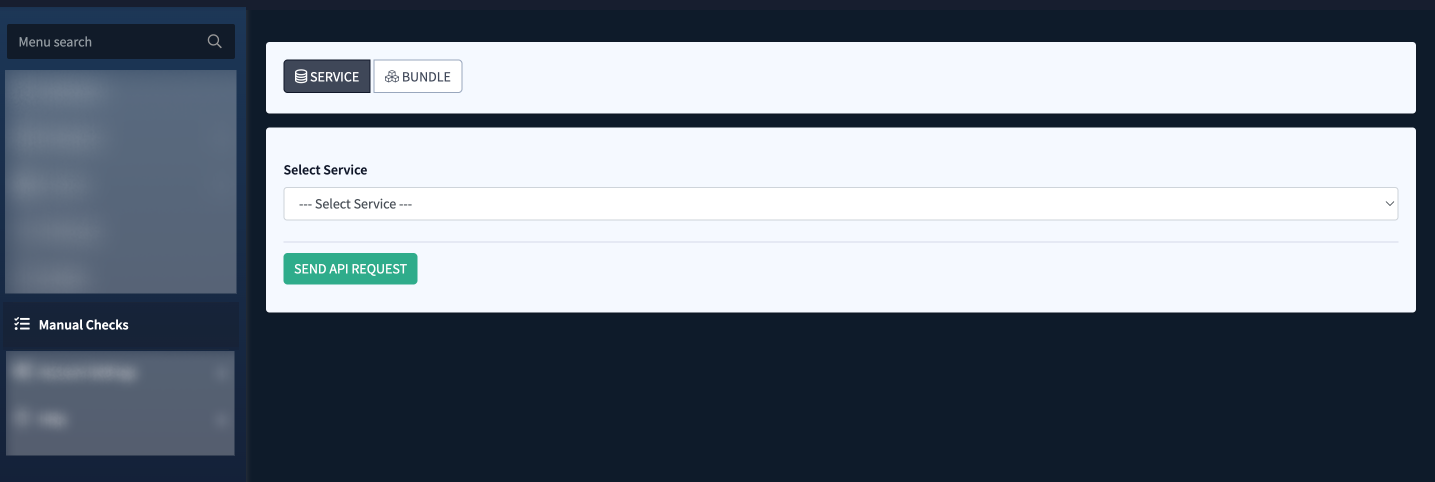
The section contains two tabs:
- The “Service” tab allows you to send an API request manually for the particular individual service.
- The “Bundle” tab allows you to build up a bundle of services to which the API request will be sent simultaneously.
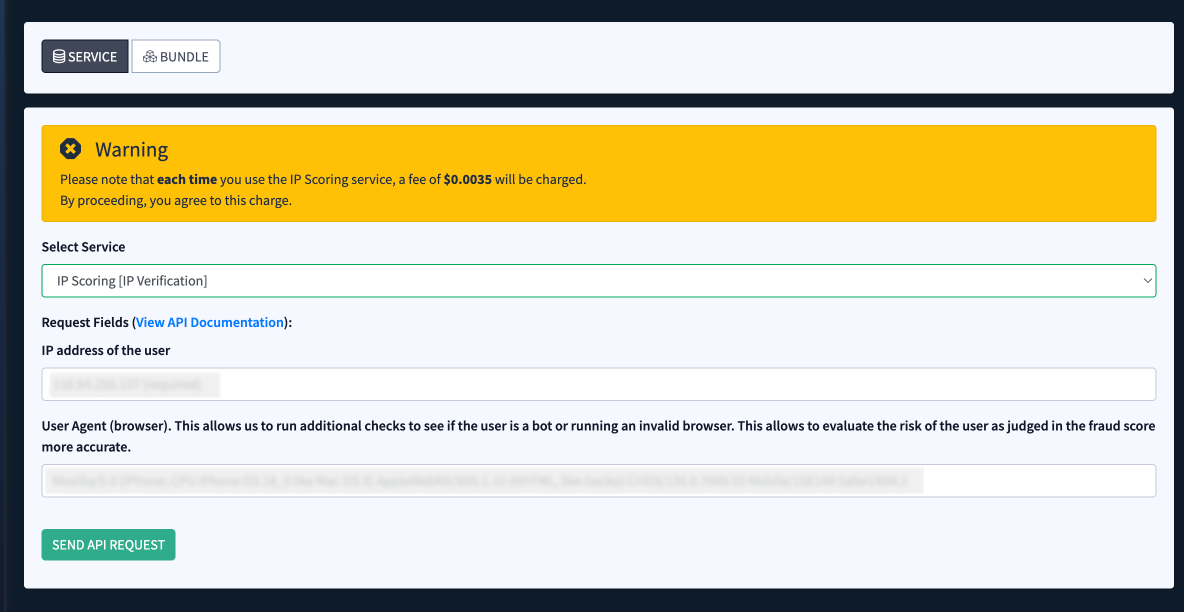
To view the information about the fields for the API request, select the corresponding service in the “Select Service” field. Depending on the selected service, the list of required fields for the API request will be displayed below.
To view the information about the service API documentation, click the “View API Documentation” link in the “Fields” field.
After selecting the desired service, fill in the required fields and click the “Send API Request” button to complete the action. Before sending the API request, review the information shown in the “Warning” pop-up.
Please note that the charge will be applied by each request according to the fee displayed in the “Warning” pop-up.
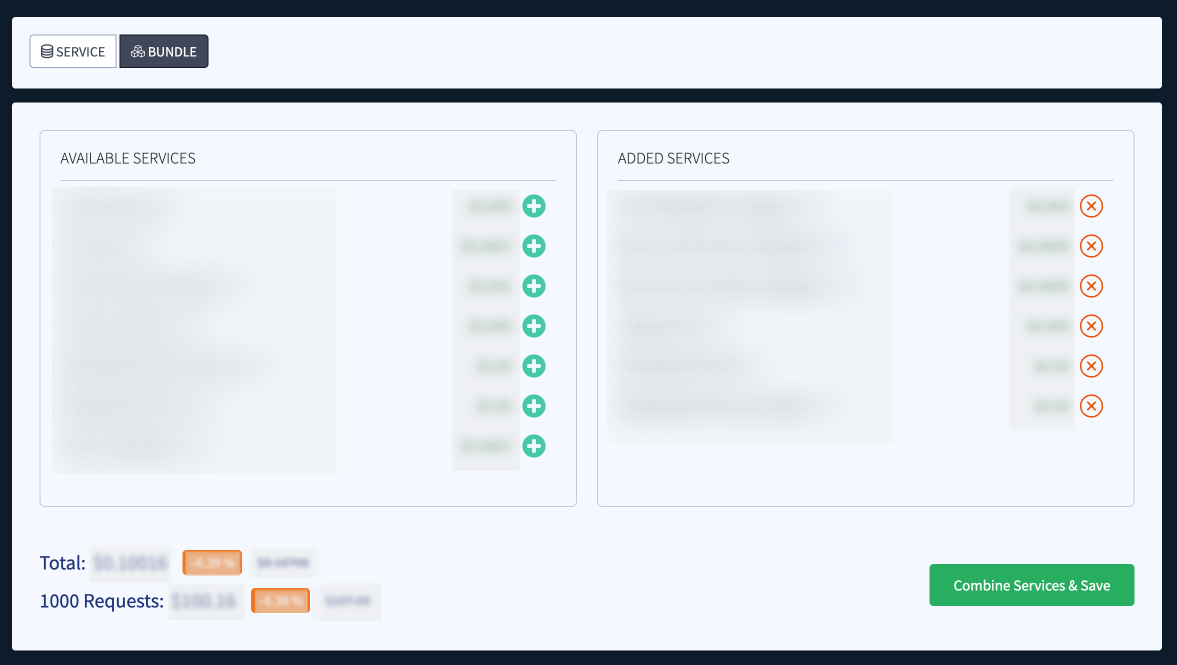
To create the API request for the service bundle, select the “Bundle” tab. Select the corresponding services from the “Available Services” list and add them to the bundle by clicking the “+” button in the corresponding row. Selected services will be displayed in the “Added Services” list. To remove the selected service from the list, click the “x” button in the corresponding row.
The total price for the bundled API request sending will be displayed in the “Total” field, along with the percentage of the applied discount. Also, the price for sending 1000 API requests will be displayed in the “1000 Requests” field.
To generate the API request for the bundle of the selected services, click the “Combine Services and Save” button.
You will be redirected to the section where the required fields for the combined API request are displayed. The system automatically compiles all necessary fields from the individual services into one combined form. Fill in the fields from the list, and click the “Send API Request” button to complete the action. To view additional information about API documentation for every request from the bundle, click the “View API Documentation” link next to the particular service.
Please note that the charge will be applied by each request according to the fee displayed in the “Warning” pop-up.
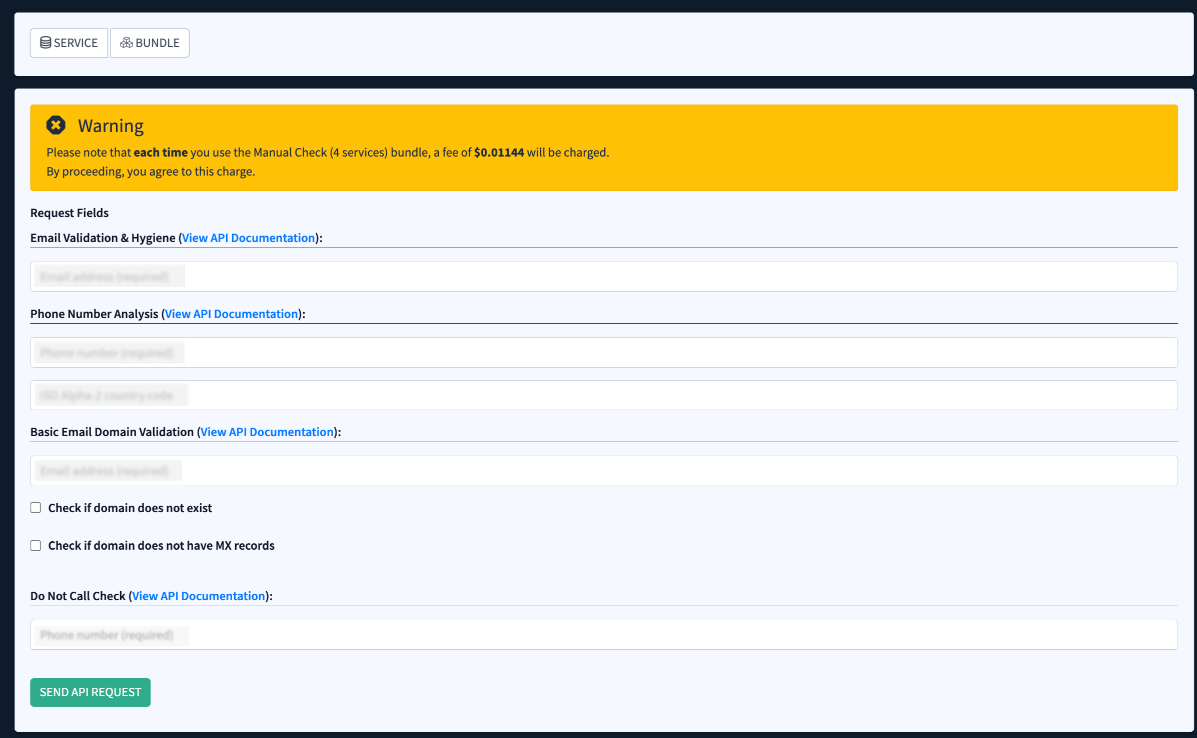
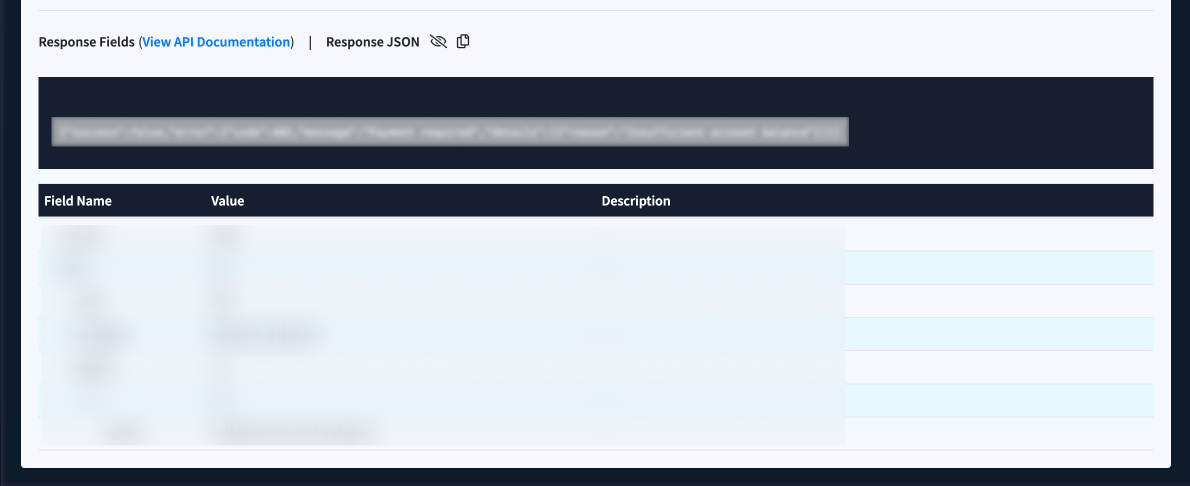
The response obtained from the service or the services’ bundle will be displayed below the request form. The results are shown in two formats:
- Table view: Displays the relevant fields along with their corresponding values.
- JSON view: Shows the full JSON response received from the service.
To view the information about the service API documentation, click the “View API Documentation” link in the “Fields” field.
To manage the JSON response:
- Click the “Show Response” button (button with the crossed eye) in the “Response JSON” field.
- Click the “Copy Response” button to copy the JSON data.
- Click the “Hide Response” button (the eye button) to collapse the JSON output.