
JavaScript SDK for AJAX form submission
Learn how to use the ValidRecord JavaScript SDK to track AJAX and multi-step form submissions, control recording, and mask sensitive input.
When tracking user behavior and form interactions on your website, it’s crucial to understand how data is submitted. The ongoing article contains information and explanations on what AJAX form submissions are, how they differ from standard forms, and how you can use the ValidRecord JavaScript SDK to effectively track sessions, protect user privacy, and capture form data.
With a standard HTML form submission, when a user clicks the Submit button, the browser sends the form data to the server and reloads the page to display the server’s response. iClaim automatically detects and tracks these standard form submissions without any additional configuration by listening for the browser’s native submit event.
Some forms do not fire the native submit event. This is common when a form is submitted programmatically with JavaScript (for example, an AJAX request), or when a flow is split into multiple steps across separate forms. In these cases, an AJAX (Asynchronous JavaScript and XML) form submission sends the form data to the server behind the scenes using JavaScript, without reloading the page. Instead, the user may see the page update dynamically, such as displaying a success message or moving to the next step in the workflow. Because AJAX intercepts the browser’s default form submission process, the native submit event may never be triggered. As a result, iClaim has no native event to listen for, so the submission is not captured.
In these cases, JavaScript SDK form submission methods must be called after a successful AJAX submission. These methods act as a bridge by explicitly notifying ValidRecord that the submission has completed successfully, allowing the recording to be finalized and submissions to be captured, along with the data the visitor entered, even when the browser’s standard submit flow is bypassed.
Use case: A publisher runs a multi-step application form. The first button is labeled Next, and the final button is labeled Submit. Auto-claim on the submit event is enabled, but it fires inconsistently – iClaim does not always detect the final submit action. On inspection, the form contains a button with type=”submit”, but the submission is handled through JavaScript (AJAX), so the native submit event never fires. Because iClaim tracks conversions based on native submit events, these submissions are not captured.
Renaming the final button from Next to Submit does not fix this, because the button text is not the cause; the native submit event is being bypassed by the AJAX request. The correct fix is to call the JavaScript SDK at the moment the AJAX submission succeeds. This tells iClaim the form was completed and passes along the data the visitor entered, restoring reliable capture and auto-claim.
How an AJAX submission works
- User Interaction: The visitor fills out the form fields and clicks the submit button, just as they normally would.
- JavaScript Interception: Instead of the browser handling the submission, a custom JavaScript function immediately intercepts the event, preventing the page from reloading.
- Form Serialization: JavaScript then scans the form, gathers all the inputs, and packages them into a structured format, most commonly a FormData object or a JSON string.
- The Asynchronous Request: The browser sends the packaged data to the server in the background using browser APIs such as fetch() or XMLHttpRequest. Because this happens asynchronously, the visitor can keep interacting with the page.
- Server Processing: The server receives the data, processes it (such as saving it or validating it), and sends a lightweight response back to the browser.
- Dynamic UI Update: The page’s JavaScript uses the server’s response to update the interface immediately- a green “Success” message, or validation errors – all without the page ever refreshing.
Before using the JavaScript SDK, confirm the following:
- The iClaim Tracking Code for your campaign is installed on the page and loads successfully. The SDK functions only exist after the tracking code has loaded.
- You have an iClaim campaign created (each campaign produces a unique tracking code).
- You (or your developer) can add or inject custom JavaScript on the page, specifically at the point where the AJAX submission completes.
- For iframe-based forms, the tracking code must be installed inside the iframe, in the same document as the form. See How to Track User Activity via Iframe-based Forms.
Note: Some iClaim features, such as record claiming, may require an upgraded account.
Read more about the iClaim Records section in the following Knowledge Base article.
Read more about the Tracking Code and how to find and share it in the following Knowledge Base article.
When a website uses AJAX-based form submissions, developers should extend the standard iClaim Tracking Code by calling the appropriate JavaScript SDK function after a successful form submission. This allows ValidRecord to detect and track submissions that bypass the browser’s native submit event. Once the Tracking Code has loaded, all functions are available on the global ValidRecordAPI object.
To view the list of available functions, go to the iClaim > API Documentation > JavaScript SDK section.
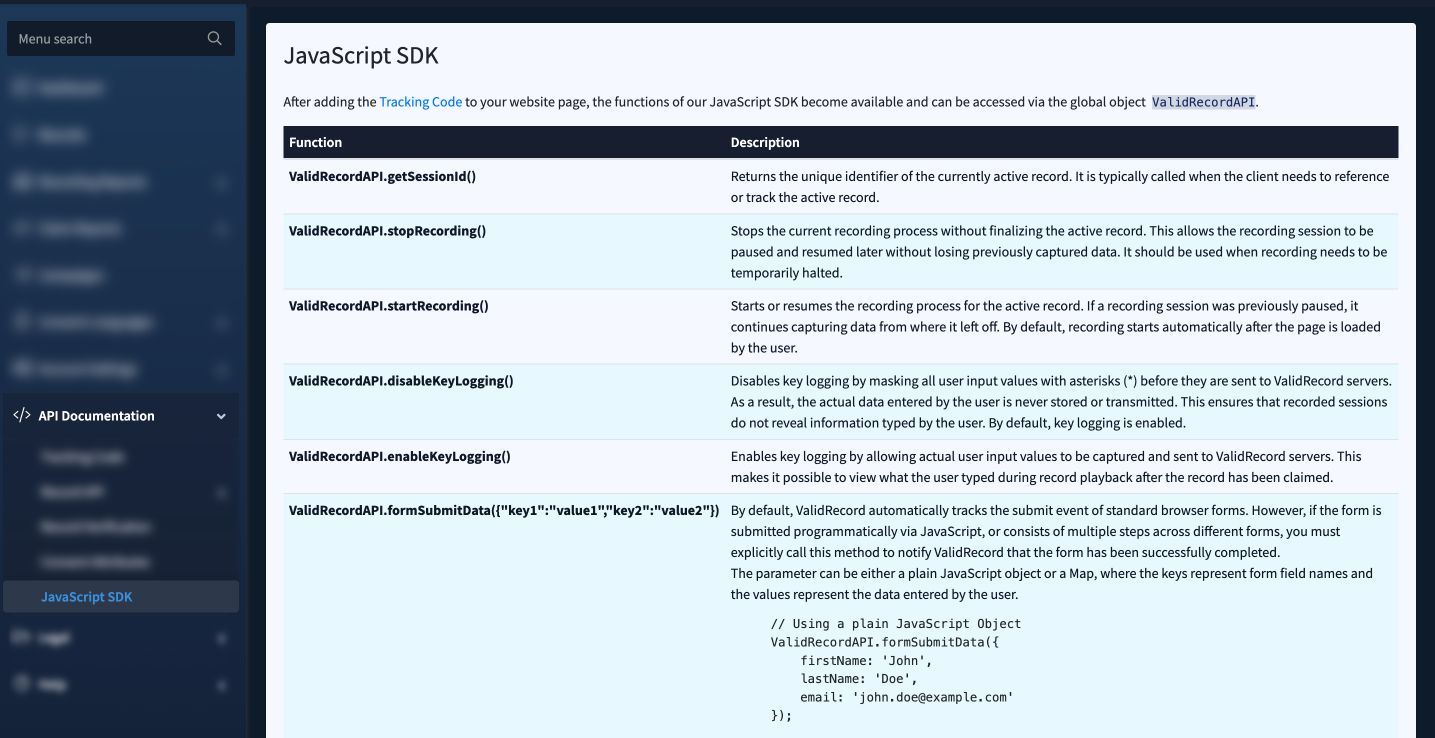
The section contains the function itself and the description for it, along with the additional information and usage examples.
The following functions are available:
- Session & Recording Controls: ValidRecordAPI.getSessionId(), ValidRecordAPI.stopRecording(), ValidRecordAPI.startRecording().
- Privacy Controls (Key Logging): ValidRecordAPI.disableKeyLogging(), ValidRecordAPI.enableKeyLogging().
- Manual Form Submission ( AJAX & Custom Forms): ValidRecordAPI.formSubmitData(data), ValidRecordAPI.formSubmitSuccess(“#formId”).
Note: Recording starts automatically when the page loads, and key logging is enabled by default. You only need the JavaScript SDK to change this behavior or to report AJAX / multi-step submissions.
How to implement
- Confirm the iClaim Tracking Code is installed before </body> and loads before your custom scripts run.
- In your AJAX success handler, call one of the form-submission methods (see examples below).
- Submit a test and confirm a Submitted form event appears on the Record.
- Track a programmatic (AJAX) submission with explicit data
Call formSubmitData() immediately after your AJAX request succeeds. Pass the fields the visitor entered as keys and values.
Using a plain JavaScript object:
ValidRecordAPI.formSubmitData({
firstName: ‘John’,
lastName: ‘Doe’,
email: ‘[email protected]’
});
Using a Map:
const formData = new Map();
formData.set(‘firstName’, ‘John’);
formData.set(‘lastName’, ‘Doe’);
formData.set(’email’, ‘[email protected]’);
ValidRecordAPI.formSubmitData(formData);
Expected result: A Submitted form event appears on the record’s session information page, and the submitted fields (such as email and phone) are stored with the record so downstream contact verification can run.
- Submit an existing form’s fields automatically
If all the data you need is already inside a single form on the page, call formSubmitSuccess() with the form’s ID or any valid CSS selector, before or immediately after the AJAX request. iClaim collects the fields for you.
// By form ID
ValidRecordAPI.formSubmitSuccess(‘#lotrollForm’);
// By tag selector (first form on the page)
ValidRecordAPI.formSubmitSuccess(‘form’);
Important: If you call formSubmitSuccess(‘form’) and the visible form only contains the final step’s fields, iClaim receives only that step’s data (without email, phone, and other earlier fields). The submission is recorded, but contact-information verification cannot run because the identifying fields were not included. To capture everything, use the approach in the next section.
- Preserve all field data across a multi-step flow (hidden form)
When the values you need are spread across multiple steps, build a hidden form that contains every required field, then submit it with formSubmitSuccess(). This preserves the full data set for the record and for contact verification.
function createHiddenForm(data, formId) {
const form = document.createElement(‘form’);
form.id = formId;
form.style.display = ‘none’;
Object.entries(data).forEach(([key, value]) => {
const input = document.createElement(‘input’);
input.name = key;
input.value = value;
form.appendChild(input);
});
document.body.appendChild(form);
}
const data = {
name: ‘John Doe’,
email: ‘[email protected]’,
phone: ‘+1 555-555-5555’
};
// Call after the AJAX form submission request succeeds
createHiddenForm(data, ‘lotrollForm’);
ValidRecordAPI.formSubmitSuccess(‘#lotrollForm’);
- Reference the active record
Use getSessionId() when you need the current record’s identifier — for example, to store it alongside your own data or pass it to another system.
const recordId = ValidRecordAPI.getSessionId();
console.log(recordId); // Unique identifier of the active record
- Pause and resume recording
Temporarily halt recording during a sensitive step, then resume without losing earlier data.
ValidRecordAPI.stopRecording(); // Pause — captured data is retained
// … sensitive step …
ValidRecordAPI.startRecording(); // Resume from where it left off
- Control key logging (mask sensitive input)
Key logging is enabled by default. Disable it to mask all input with asterisks before anything is sent to ValidRecord servers; re-enable it when you again need to capture what the visitor typed.
ValidRecordAPI.disableKeyLogging(); // Mask input (values sent as ******)
ValidRecordAPI.enableKeyLogging(); // Capture actual input values
The user input may be replaced by asterisks (*) in session recordings even if the disableKeyLogging() function was never explicitly called. This happens in two specific scenarios:
Lead Contact Verification: To protect personal information, a lead’s contact details (like phone or email), along with all data obtained while the lead is inputting, are hidden by default in the ValidRecord. To view them, an authorized user must perform a Lead Contact Check. You will see a “Verify Lead Contact Information” window, where you must manually enter the lead’s phone number or email to unlock and reveal the data.
HTML Attribute Masking: Developers have the option to permanently hide the values of any field directly in the HTML. By adding the data-iclaim-mask=”1″ attribute to an input element (for example: <input type=”text” name=”ssn” data-iclaim-mask=”1″>), the system will permanently store only asterisks. The actual data entered into that field is never saved and cannot be revealed.
Testing and Validation
Verify the JavaScript SDK on any page where the tracking code is installed:
- Open the page in your browser and open the Developer Console (F12 → Console).
- Run a test submission: ValidRecordAPI.formSubmitData({ “email”: “[email protected]”, “phone”: “+1 555-555-55”, “name”: “John Doe” });
- Open the record’s session information page and confirm a Submitted form event has appeared.э
- If you use contact verification, confirm that the email you submitted (for example, [email protected]) is accepted when checked against the record.
- Run the other SDK commands from the Function Reference and confirm none of them throw errors.
Troubleshooting (common issues and fixes)
Auto-claim on submit fires inconsistently or not at all
Possible causes
- The form is submitted via JavaScript (AJAX), so the native submit event never fires — even though a type=”submit” button exists.
- The flow is split into multiple steps, and the final step does not trigger a native submit.
Fixes
- Call ValidRecordAPI.formSubmitData({ … }) (or formSubmitSuccess(‘selector’)) at the moment the AJAX request succeeds.
- Do not rely on renaming a button (for example, Next → Submit). Button text does not affect whether the native submit event fires.
ValidRecordAPI is undefined in the console
Possible causes
- The iClaim Tracking Code is not installed on the page, or is placed after the code that calls the SDK.
- The tracking code failed to load (network error or a Content Security Policy blocking the script).
- On an iframe-based form, the tracking code is only on the parent page, not inside the iframe.
Fixes
- Confirm the tracking code is present just before </body> and loads without network errors.
- Call SDK functions only after the tracking code has loaded.
- For iframe-based forms, install the tracking code inside the iframe. See How to Track User Activity via Iframe-based Forms.
The submission is recorded, but contact-information verification does not run
Possible causes
- formSubmitSuccess(‘form’) captured only the final step’s fields, so identifying data (email, phone) was not included.
Fixes
- Pass the identifying fields explicitly with formSubmitData({ … }), or build a hidden form containing all required fields and submit it with formSubmitSuccess(‘#hiddenFormId’).
Only the last step of a multi-step form is captured
Possible causes
- Each step is a separate form, and iClaim was notified only for the final form.
Fixes
- Consolidate the collected values from all steps into one formSubmitData() call or one hidden form, then submit once at completion.
Recorded sessions show masked input (or reveal data you wanted masked)
Possible causes
- Key logging was disabled (input masked) or enabled (input captured) at the wrong point in the flow.
Fixes
- Call enableKeyLogging() where you need to capture input and disableKeyLogging() where input must be masked. Remember that key logging is enabled by default.
Frequently Asked Questions (FAQ)
- Do I need a developer to use the JavaScript SDK?
Yes, implementing the SDK requires basic knowledge of JavaScript and HTML. While adding the standard tracking snippet is usually a simple copy-paste job, adding manual SDK triggers (like ValidRecordAPI.formSubmitSuccess) requires modifying your website’s custom form handling code.
- Does the ValidRecord SDK slow down my website or affect my page load speed?
No. The tracking code is designed to load asynchronously, meaning it does not block your website’s main content from rendering. The SDK functions are lightweight and execute in the background without interrupting the user experience.
- How can I test if the SDK is working before publishing my code?
You can use your browser’s Developer Tools. Open the Network tab, interact with your form, and trigger the SDK function. You should see a background network request successfully sent to the ValidRecord servers. You can also type ValidRecordAPI.getSessionId() directly into the Console to ensure the SDK is active and generating a session identifier.
- What is the difference between formSubmitData() and formSubmitSuccess()?
Use formSubmitSuccess(‘#formId’) (a form ID or any valid CSS selector) when the form exists in the page’s HTML but is submitted via AJAX. Use formSubmitData(data) when the values live only in your JavaScript variables and don’t map cleanly to a single HTML form.
- If I use disableKeyLogging(), does it hide everything?
It masks user input (such as text entered in text fields) with asterisks (*) before the data leaves the browser. However, standard structural interactions such as mouse movements, button clicks, and page scrolling are still recorded.
- Does changing the button text to “Submit” fix the issue?
No. What matters is whether the native submit event fires. When a form submits via AJAX, that event is bypassed regardless of the button’s label, so you must call an SDK method after the AJAX request succeeds.